Storage Center Operating System Updates FAQ
Summary: This article is designed to answer frequently asked questions on the topic of Storage Center Operating System (SCOS) Updates.
This article applies to
This article does not apply to
This article is not tied to any specific product.
Not all product versions are identified in this article.
Instructions
Table of Contents
- What is a Storage Center Operating System (SCOS) Update?
- Is the update disruptive?
- An available update is not seen in my management client?
- Is an update available if there is no network access on-site?
- What to expect when requesting a SCOS Update?
- What to do to prepare for a SCOS update?
- How to check Firewall rules for SupportAssist/Secure Console?
- How to perform a Failover Test?
- Where to review Best Practices?
- How long does the update take?
- Considerations for Replications or Live Volumes
- What if there is a problem updating?
- What is the best way to receive notification of new SCOS releases?
- Further reading
Confirm a failover test as described below is completed before updating the SAN.
What is a SCOS Update?
A SCOS update is a package containing all the latest updates for an entire storage system. This includes updates for the system BIOS, Storage Center operating system, enclosure firmware, disk firmware, and other system components.
Confirm a failover test as described below is completed before the update takes place.
NOTE: To update Dell Storage Manager, use the Dell Support Driver & Download page to select the appropriate platform.
Is the update disruptive?
No - In a dual-controller system that has been properly configured and validated to support controller failover, the SCOS update is nondisruptive. No downtime is required. As a best practice, SCOS updates should be performed during a designated maintenance window.
The update process applies the SCOS package first to the lead controller, followed by the peer controller once the initial update is complete. If there is any uncertainty about the system’s readiness for a nondisruptive update, a controller failover test should be conducted during a maintenance window to confirm suitability.
Details on the recommended failover test are found below.
NOTE: Single controller system updates always require downtime.
An available update is not seen in my management client?
Dell Support releases SCOS updates after the successful completion of a system health check. This requirement minimizes the risk involved in applying the update. This update requires proper notice to be given to Dell Support to identify and resolve any issues that may arise during the Health Checks. The update may be downloaded and applied through your preferred management client once released.
Is an update available if there is no network access on-site?
Yes, Dell Support can provide a .zip file to be downloaded offsite and brought physically to the site. This is then installed using the Storage Center Update Utility. Contact Dell Support for more information.
What to expect when requesting a SCOS Update?
- Contact Dell Support to run a health check. This should be done one week prior to the update to the SCOS.
- Preupdate requirements, such as updates to Dell Storage Manager, are identified by Dell Support and resolved by the customer before the update can be applied.
- Dell Support must complete a preupdate system health check (this must be run within 24 hours of the update taking place)
- Dell Support releases an update package. Normal download time for this package is between 20 and 30 minutes, but it may vary.
- The update is applied through your preferred management client, choose the Nonservice Affecting option, unless a maintenance window is put in place. Estimated completion times for the update and other installation options are found below.
- After the update, a post upgrade health check is performed with Dell Support once notification is received that the update is complete.
What to do to prepare for a SCOS update?
- The Dell best practice is to run a full backup of all data prior to any update.
- Have an installed working SupportAssist and SSH connection for system pre- and postchecks. (This may require implementing the networking changes detailed below.
- Have an installed version of Dell Storage Manager compatible with the intended SCOS version. The required version is determined and provided by Dell Support prior to the update taking place.
- Validate the current best practices for the given environment, including a review of the Dell Storage Compatibility Matrix for SC, PS, and FS Series Arrays. It is the customer’s responsibility to perform these checks. Our health check is not fully environment aware and may not identify all possible issues. In the worst cases, failure to carry out the proper checks may result in an unexpected outage.
- Confirm a failover test as described below is completed before the update takes place.
- Confirm Replications or Live Volumes are paused during the update to ensure that they remain synchronized.
- If Live Volumes with Auto Failure are in use, see the specific requirements outlined below to ensure that your system complies with best practices. Failure to do so may result in the volumes going offline during the update.
- Replicating systems should be updated within the same maintenance window, so additional planning may be required.
How to check Firewall rules for SupportAssist/Secure Console?
For dual controllers, the rules shown below must be set for:
- The IP addresses of the physical management (Eth0) ports on both controllers
- The shared Management IP address assigned to the storage
- The host running your Data Collector application
The most current set of firewall requirements can be found by referencing the article Dell Compellent: Network requirements to enable Dell SupportAssist Enterprise and Secure Console with Storage Center
How to perform a Failover Test?
It is imperative to perform a failover test before a SCOS update. This is done in order to confirm and validate that the Best Practice configuration for the hosts is set correctly. This ensures that during the update, the hosts remain connected to the Storage volumes and avoid a loss of production.
In order to complete the test, follow the procedure below:
- Ensure that this failover test is done during a planned maintenance window.
- Place the system in maintenance mode (This avoids generating unnecessary Support incidents when the controllers reboot).
- In the Dell Storage Manager (DSM) interface, right-click the system to put it into maintenance mode.
- Click the following options Edit Settings > General > Operation Mode > Maintenance (Figure 1 below-English only)
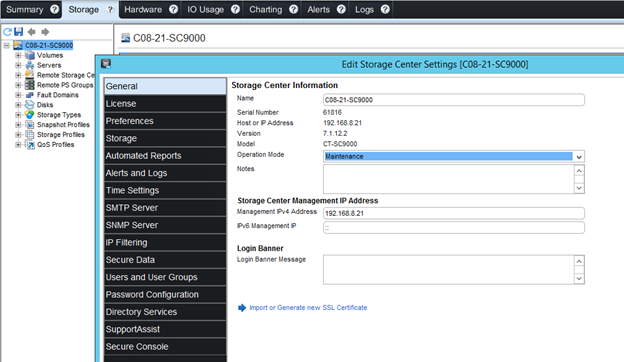
Figure 1: Change Operation Mode to maintenance mode.
- Do a sequential reboot of the controllers (one after the other)
- In the management interface, right-click the system to put in maintenance mode.
- Click the options Action > System > Shutdown/Restart.
- In the new menu window, choose Restart and Restart in Sequence (for the Restart Options). (Figure 2 below-English only)
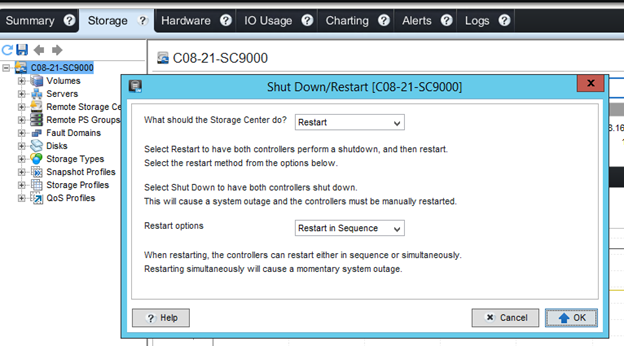
Figure 2: Restart options to restart in sequence.
- During the failover test, monitor the hosts and ensure that they have access to the volumes.
- Connect to the host and check that the volumes stay online and that the data is accessible.
- In DSM, the connectivity status should be partial. If the connectivity status is down, then the best practice configuration must be reviewed. (Figure 3 below-English only)
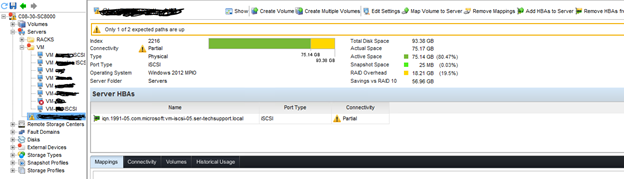
Figure 3: Connectivity status on the Host
- Once the test is done, ensure that the system is put back into normal mode.
- In the management interface, right-click the system that was is maintenance mode.
- Click the options Edit Settings > General > Operation Mode > Normal (Figure 1 above-English only)
If any issues are encountered during the test, note any symptoms or error messages and contact Dell Support.
Where to review Best Practices?
Best practice documentation is available at SC Series Technical White Papers and Videos. It is recommended to review them to ensure that the configuration is optimal before doing updates.
In the SC Series Technical Documents, see the documents relevant to the Operating Systems used in your environment. Pay attention to the MPIO, HBA, and time-out settings. This is to ensure the Boot from SAN, Live volume, and Replication settings are set as explained in the best practice documentation above.
Review the Dell Storage Compatibility Matrix for SC, PS, and FS Series Arrays to verify your driver/firmware compatibility.
How long does the update take?
Applying any update to the SAN varies depending on what version of SCOS the system is running, how many drives the system has, and what version is the destination. The estimated time is listed in DSM and in Unisphere with the corresponding options on how to apply the update. See Dell Storage Manager Admin guide or Unisphere Admin guide for differences in options to apply updates.
Considerations for Replications and Live Volumes
- Replications should be paused during the update to ensure that they remain synchronized.
- If using Live Volumes with Auto Failover enabled, ensure that:
- The Primary Data Collector running the Tiebreaker service used by LV AFO is located at a third site rather than on the source or destination site. If located on the primary/secondary site, the tiebreaker may not be able to communicate with the opposite site during the failover and this can cause the system to think that it is isolated. In this scenario, the default action taken by on the system is to take the Live Volume offline.
- If the host running the Primary Data Collector and Tiebreaker service has multiple network cards, ensure that the selected network card is using an IP address in the storage management subnet.
- Test that the Live Volume swap role works prior to proceeding with failover tests or a SCOS update.
- Ensure the Live Volume on the Dell Compellent system being updated is showing as Secondary Live Volume before proceeding with the update.
- Ensure that the update is performed during a scheduled maintenance window.
What if there is a problem updating?
On rare occasions, an update may stall or take far longer than indicated. In the unlikely event that this happens, call Dell Support. In these cases, Dell Support most likely has to access the system using the supplied serial cable. Because of this, the recommendation is to have staff on-site with the system and serial cable, wherever possible, before attempting the update.
What is the best way to receive notification of new SCOS releases?
Here are the different ways to see if there is a newer version of SCOS available:
- Go to Dell.com/Support and after putting in your service tag, review the Manuals and Documents section to see what the latest version of SCOS is by searching Storage Center Release notes.
- When calling in on an unrelated issue, ask your case owner what the latest SCOS version is
- Periodically call in and request a health check on your SAN and ask what the latest SCOS version is.
Further reading
The information contained within this page is not intended to cover all aspects of the update process. To ensure that updates complete correctly and to minimize the impact of the SCOS update on hosts and applications, read the Dell Storage Manager Administrator's Guide and relevant SC Series Technical White Papers and Videos as applicable.
Affected Products
Compellent (SC, SCv & FS Series), EqualLogic (PS Series)Article Properties
Article Number: 000127685
Article Type: How To
Last Modified: 16 Mar 2026
Version: 18
Find answers to your questions from other Dell users
Support Services
Check if your device is covered by Support Services.