PowerFlex 3.x How to Manually Upgrade VxFlex Manager Without Secure Remote Services
Summary: Offline upgrade of PowerFlex (VxFlex Manager) appliance
This article applies to
This article does not apply to
This article is not tied to any specific product.
Not all product versions are identified in this article.
Instructions
Goal:
- Upgrade the VxFlex Manager appliance to the latest version
Facts:
- Basalt = 3.1.x
- Chalk = 3.2.x
- Dacite = 3.3.x
- Erdite = 3.4.x
- Foggite = 3.5.x
- Garnet = 3.6
- Garnet Plus = 3.6.1
This guide explains the offline upgrade process for VxFlex Manager versions:
- Basalt > Chalk
- Chalk > Foggite
- Dacite > Foggite
- Erudite > Foggite
- Dacite > Garnet Plus
- Erudite > Garnet Plus
- Foggite > Garnet Plus
Preliminary Information:
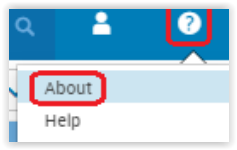
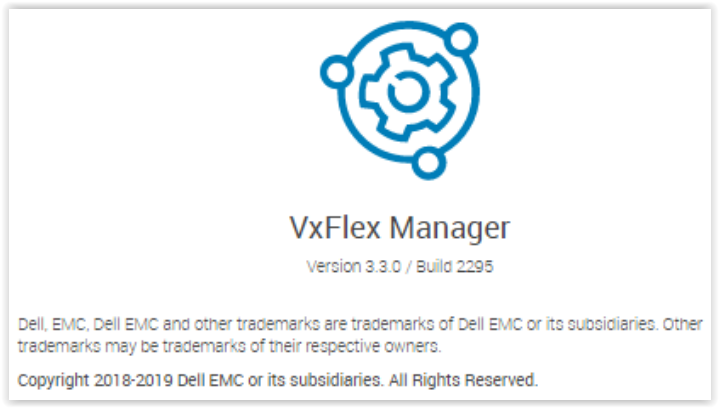
Take note of the current version by going to? > About in the upper right corner:
Sample output:
Procedure:
- Perform a backup of the appliance. See Dell KB article 183009: PowerFlex Manager - How to backup PowerFlex Manager appliance
- Snapshot of the PFxM appliance
- Download the VxFlex Manager .zip file required for the upgrade. Go to Dell Product and License Download Center or PowerFlex Manager for the file.
Go to the software by selecting VxFlex Manager OVA:
PowerFlex Manager > PowerFlex OVA > Expand the latest VxFlex Manager OVA.
- Download the appropriate VxFlex Manager .zip file.
- Copy the Dell-VxFlex Manager-3.x.x.xxxx.zip file to /var/tmp on the VxFlex Manager appliance using WinSCP or a similar program.
- Open an SSH session to the VxFlex Manager appliance with the command.
sudo su
- Extract the file that you copied with the command:
sudo unzip /var/tmp/Dell-VxFM-3.x.x.xxxx.zip -d /var/lib/razor/repo-store/upgrade
Sample output:

-
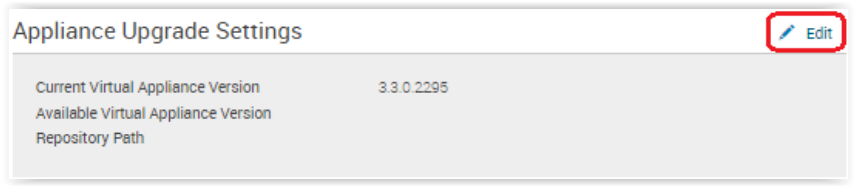
Log in to the VxFlex Manager Web UI and go to Settings > Virtual Appliance Management. Click Edit, next to the Appliance Upgrade Settings:
-
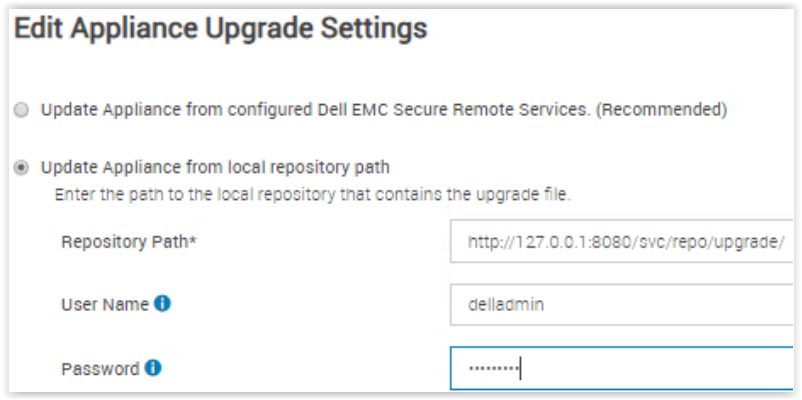
Select the second radial button, Update Appliance from local repository path.
-
Enter the path to the file: http://<IP>:8080/svc/repo/upgrade/ where <IP> is the IP address of VxFlex Manager appliance.
Note: Sometimes, if running an older version of VxFlex Manager (such as Basalt 3.1.x), the upgrade path will be: http://<IP>:8080/svc/repo/upgrade/centos/7/x86_64 where <IP> is the IP address of VxFlex Manager appliance. -
Enter credentials (default = delladmin / delladmin)
-
Click Save.
-
In the Appliance Upgrade Settings, see the new version that you want to upgrade to listed as the Available Virtual Appliance Version.
-
When ready to perform the upgrade, click the Update Virtual Appliance button in the Virtual Appliance Management settings page.

Note: The update can take up to 30 minutes and reboots the VxFlex Manager appliance during the process.
-
Once the update completes, the login page comes back up. Login and verify that the version is updated.
Go to? > About in the upper right corner
Note: This upgrade does not affect any services that are added to VxFlex Manager, it only affects access to the VxFlex Manager Web UI.
Affected Products
PowerFlex SoftwareArticle Properties
Article Number: 000180905
Article Type: How To
Last Modified: 29 Apr 2025
Version: 6
Find answers to your questions from other Dell users
Support Services
Check if your device is covered by Support Services.