Avamar: Windows File System Plugin Missing from Backup/Restore Tab
Summary: The Windows Avamar client shows only the VSS plug‑in on the Backup/Restore tab because the file system plug‑in is missing after downgrading from 19.2 to 19.1, leaving a previous plug‑in installed. ...
This article applies to
This article does not apply to
This article is not tied to any specific product.
Not all product versions are identified in this article.
Symptoms
Observed Symptoms
In the Avamar Administrator console, the Filesystem plug‑in is absent from the Backup and Restore tab, and only the VSS plug‑in is displayed.
The client log C:\Program Files\avs\var\avagent.log contains a warning indicating a version mismatch between the plug‑in (avtar) and the agent.
avagent Info : Reading pin file C:\Program Files\avs\bin\windows.pin
avagent Info : Finished READING xml file - starting parse
avagent Info : Checking version of plug-in 'Windows', executable name 'avtar' (mode:ctl)
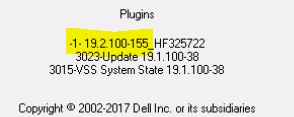
avagent Info : Plug-in version 19.2.100-155_HF325722 found for Windows plug-in
avagent Warning : Plug-in (avtar) and agent are different versions (19.2.100-155_HF325722 and 19.1.100-38).  ****** Current MCS name 'avamarserver.com' ******
avagent Info : Registration of client /clients/test.dell.com with MCS avamarserver,com:28001 successful.
avagent Info : Registration of plugin 3015 VSS successful.
avagent Info : Registration of plugin 3023 update successful.
avagent Info : Registration of plugin 3015 VSS successful.
avagent Info : Registration of plugin 3023 update successful.
avagent Info : Registration of client and plugins complete.
The system‑tray client icon shows a different plug‑in.
Cause
Root Cause
The problem is caused by an incomplete removal of a previous plug‑in version before installing an older version. The customer had installed Avamar 19.2 with hot‑fix HF325722 (avtar.exe) and later downgraded to 19.1. The 19.2 hot‑fix binary was not removed, so only the VSS plug‑in registered.
Note: This can happen in any version if the uninstallation of the previous plugins is done incorrectly.
Resolution
Resolution Steps
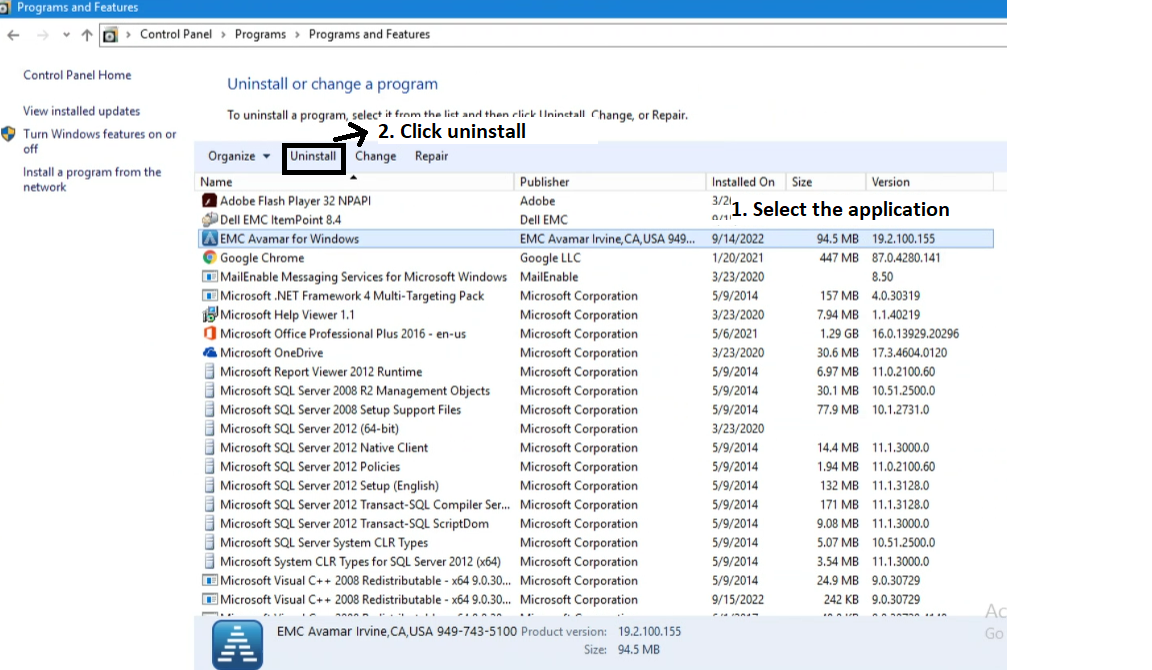
- Uninstall the existing Avamar plug‑in completely.
- Open Control Panel, select EMC Avamar for Windows, and click Uninstall.
- Install the desired plug‑in version (for example 19.1) after the previous version is fully removed.
Note: Ensure the hot‑fix binary (avtar.exe) from the prior version is removed before reinstalling the plug‑in.
Affected Products
Avamar, Avamar Client, Avamar Client for Windows, Avamar Plug-in, Microsoft Windows 2012 ServerArticle Properties
Article Number: 000201404
Article Type: Solution
Last Modified: 09 Sep 2026
Version: 5
Find answers to your questions from other Dell users
Support Services
Check if your device is covered by Support Services.