NetWorker: Unable to View Client IDs for All Clients After Using nsrdr
Summary: After using nsrdr to migrate or recover NetWorker server, the client ID attribute is no longer visible for all clients.
This article applies to
This article does not apply to
This article is not tied to any specific product.
Not all product versions are identified in this article.
Symptoms
NetWorker server was migrated to a new host or recovered from bootstrap backup using nsrdr command. After the disaster recovery, Client ID values are missing from the NetWorker Management Console (NMC) view. The hostname attribute also appears blank instead of having the NetWorker server name:
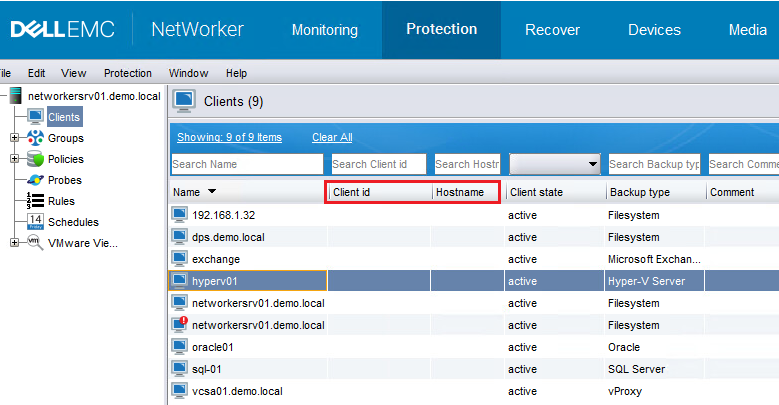
Figure 1: NetWorker Management Console view

Figure 2: Client Properties
Client IDs are available in the media database even for new backups and can be checked using below command:
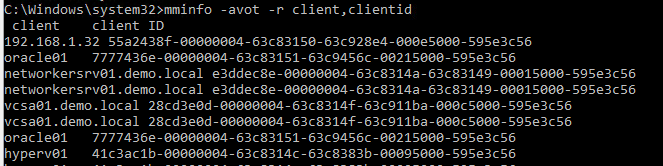
Figure 3: Check client ID using mminfo command.
Client IDs are missing from the resource database when checked using the below:
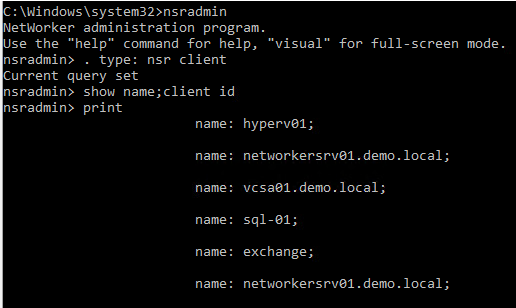
Figure 4: Check client ID using nsradmin utility.
In the NetWorker server's daemon log, the following messages are logged during service startup:
Figure 1: NetWorker Management Console view
Figure 2: Client Properties
Client IDs are available in the media database even for new backups and can be checked using below command:
mminfo
Figure 3: Check client ID using mminfo command.
nsradmin
Figure 4: Check client ID using nsradmin utility.
In the NetWorker server's daemon log, the following messages are logged during service startup:
DD/MM/YYYY HH:MM:SS  1 5 0 11092 11088 0 networkersrv01.demo.local nsrd NSR notice The fast system restart of NetWorker is enabled. DNS cache will not be populated and RAP check of the clients will be skipped.
DD/MM/YYYY HH:MM:SS  1 5 0 11092 11088 0 networkersrv01.demo.local nsrd NSR notice Skipping populating DNS cache as disaster recovery is in progress ...
Cause
nsr_disaster_recovery_mode file exists under the /nsr/debug directory. This file is created as part of the nsrdr procedure. It enables the file system restart of the NetWorker server by disabling DNS lookups which results in the client IDs missing or not loaded into the resource database during service startup.
In normal DR operations, this file should be deleted at the end of the start up process. However, in case a failure is encountered or nsrdr does not complete properly, this file may be left over in the /nsr/debug directory requiring manual removal.
In normal DR operations, this file should be deleted at the end of the start up process. However, in case a failure is encountered or nsrdr does not complete properly, this file may be left over in the /nsr/debug directory requiring manual removal.
Resolution
Perform the following steps to disable the DR mode or fast system restart when no NetWorker activities are running:
- Stop the NetWorker services:
Windows:    net stop nsrd
Linux:      systemctl stop networker
- Rename or delete the "nsr_disaster_recovery_mode" file from the /nsr/debug directory.
- Restart NetWorker services:
Windows:    net start nsrd
Linux:      systemctl start networker
Additional Information
Reference:
"Disable DNS cache population for NetWorker Server" section of the Dell NetWorker Server Disaster Recovery and Availability 19.9 Best Practices Guide
https://dl.dell.com/content/manual24893255-dell-networker-server-disaster-recovery-and-availability-19-9-best-practices-guide.pdf?language=en-us
"Disable DNS cache population for NetWorker Server" section of the Dell NetWorker Server Disaster Recovery and Availability 19.9 Best Practices Guide
https://dl.dell.com/content/manual24893255-dell-networker-server-disaster-recovery-and-availability-19-9-best-practices-guide.pdf?language=en-us
Affected Products
NetWorkerArticle Properties
Article Number: 000218693
Article Type: Solution
Last Modified: 31 Oct 2023
Version: 2
Find answers to your questions from other Dell users
Support Services
Check if your device is covered by Support Services.