Dell MultiFactor Authentication User Guide
Summary: This article reviews the process of Dell’s multifactor authentication for Dell.com.
This article applies to
This article does not apply to
This article is not tied to any specific product.
Not all product versions are identified in this article.
Instructions
At Dell, safeguarding your data integrity is of utmost importance, and our latest updates to Dell's authentication system reflects our ongoing commitment to this principle.
Our enhanced log-in experience now includes multifactor authentication (MFA), offering an additional layer of security during the sign-in process. Our customers gain added protection against potential account compromise with MFA, reinforcing our dedication to maintaining a secure environment for all users.
Please ensure that you add 'dell.myaccount.automated@dell.com' to your email's safe sender list to prevent the code email from being marked as spam. You should keep the code confidential. Dell personnel will never ask you to provide them with your code.
If you log out, you must reauthenticate with the same multifactor authentication process if you want to log back in.
Did you not receive a code?
Our enhanced log-in experience now includes multifactor authentication (MFA), offering an additional layer of security during the sign-in process. Our customers gain added protection against potential account compromise with MFA, reinforcing our dedication to maintaining a secure environment for all users.
How does multifactor authentication work?
After entering your username and password and clicking 'Sign in,' you will receive an email containing a unique, dynamically generated, one-time 6-digit number. Enter this number on the login page. Once you have entered the code and clicked 'Verify and Sign In', you are logged in to Dell.com. The code is valid for 5 minutes and for a single use only.Please ensure that you add 'dell.myaccount.automated@dell.com' to your email's safe sender list to prevent the code email from being marked as spam. You should keep the code confidential. Dell personnel will never ask you to provide them with your code.
If you log out, you must reauthenticate with the same multifactor authentication process if you want to log back in.
- Enter your email address and password, then click Sign In.
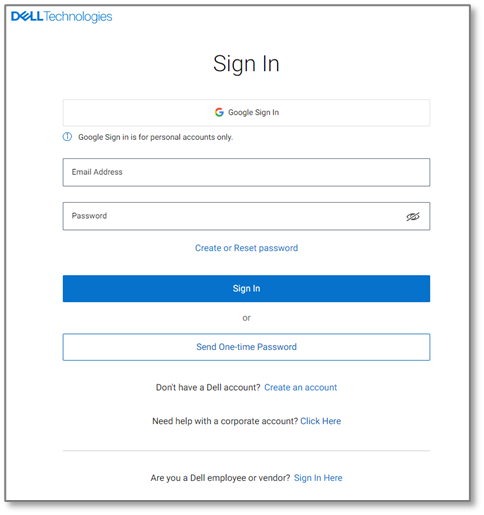
Figure 1 - Dell.com sign-in page - Look for an email from dell.myaccount.automated@dell.com and locate your 6-digit code. Use the 6-digit code in the email sent to you.
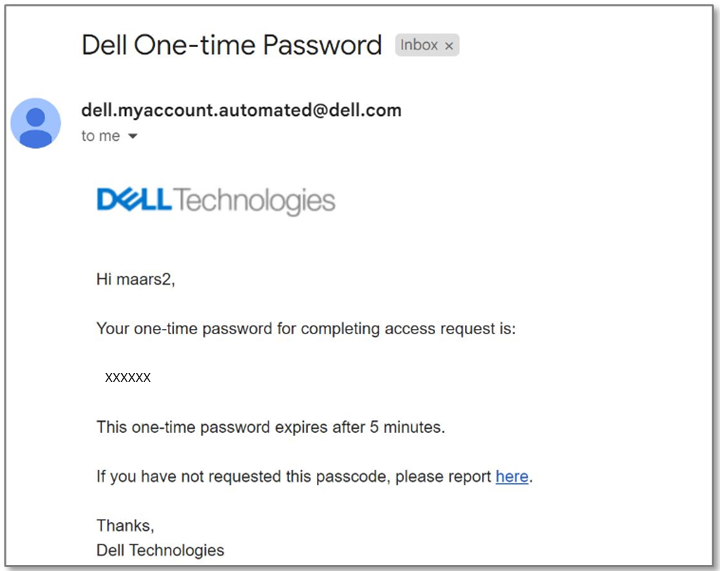
Figure 2 - Example of One-Time Password email - Enter the 6-digit code on the sign-in verification page as requested and click Verify and Sign In.
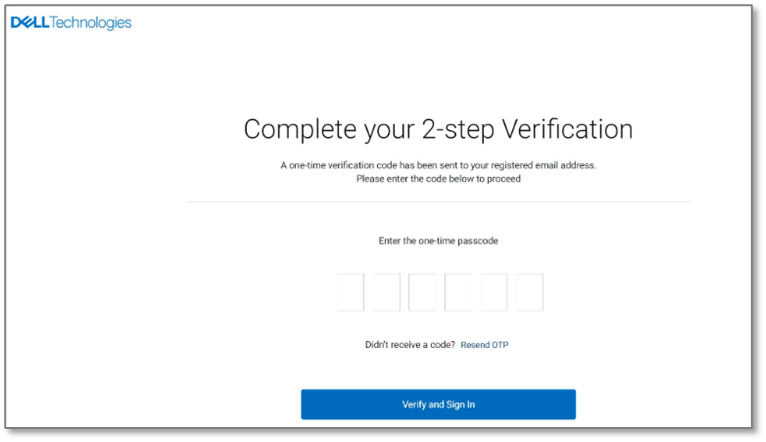
Figure 3 - Verification screen
Problems with One-Time passcode
If you experience a problem with a one-time passcode, refer to these options:Did you not receive a code?
- Please ensure that you add 'dell.myaccount.automated@dell.com' to your email's safe sender list to prevent the code email from being marked as spam.
- Check your junk/spam folder for the email.
Article Properties
Article Number: 000224673
Article Type: How To
Last Modified: 20 May 2026
Version: 6
Find answers to your questions from other Dell users
Support Services
Check if your device is covered by Support Services.