Isilon Licensing using Activate by File
Summary: This article provides step-by-step instructions and directions for Customers, Partners, and Internal Users when activating Isilon licenses in Software Licensing Central (SLC).
This article applies to
This article does not apply to
This article is not tied to any specific product.
Not all product versions are identified in this article.
Instructions
Pre-Requisite:
Users who require access to the Dell Digital Locker or Software Licensing Central (SLC) should register for a Support Account on Support | Dell US. Internal Users who require access to Software Licensing Central (SLC) should submit a MyAccess Ticket Internally.
Instructions:
The User must generate the activation.xml file from the OneFs following the below steps;
- Click Cluster Management > Licensing.
- In the OneFS License Management area, click Open Activation File Wizard.
- Click the checkboxes next to the software modules to select or deselect the contents of your activation file.
- Modules that are preselected are included within the license file. The User can deselect a module to remove the license.
-To undo changes made to the list, click Revert changes at the bottom of the page.
- Click Review Changes.
- Review the changes being planned.
-The Contents of the activation file contain a list of all licenses to be included in the activation file.
- This page also lists licenses that the User selected to remove from the activation file, and the licenses that the user has selected to add.
- Click Create file.
- Review the full contents of the activation file. (The OneFS license and a summary of the hardware tiers are also displayed on this summary page.)
- Click Accept.
Once the activation.xml file has been generated, the User submits the activation file to Dell Technologies Software Licensing Central (SLC). The User receives a signed license file for the cluster following the below steps;
-
From your local, internet-connected system, go to Software Licensing Central (SLC).
-
Log in to the system using your Dell Technologies credentials.
-
Click ACTIVATE at the top of the page.
A menu appears with two options: Activate and Activate by File.
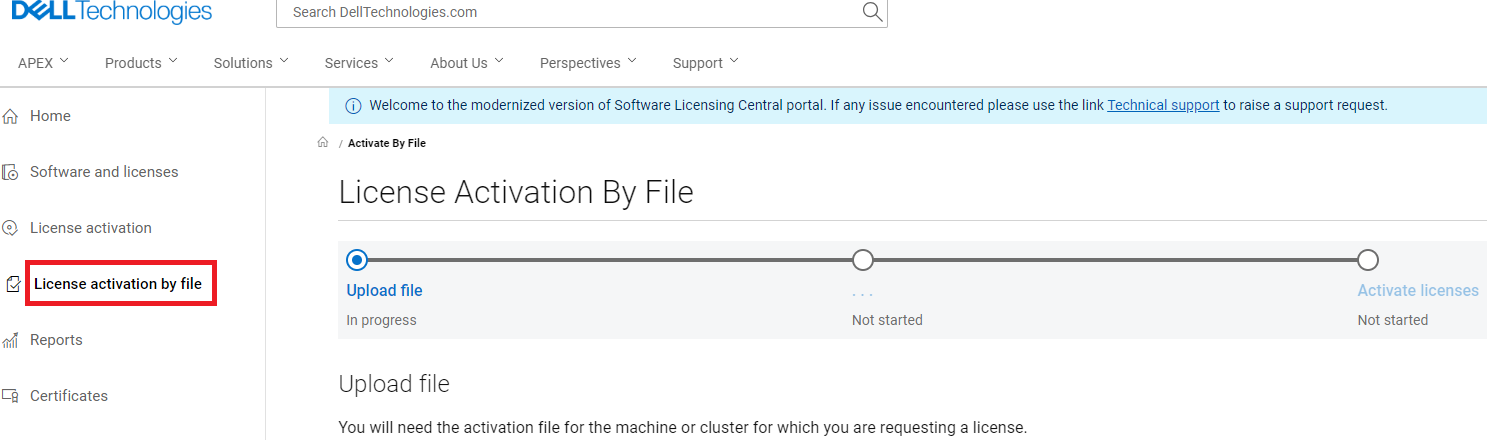
-
Click Activate by File.
The Upload Activation File page appears. -
Confirm that your company name is listed next to Company.
If your company name is not displayed, click Select a Company and search with your company name and ID.
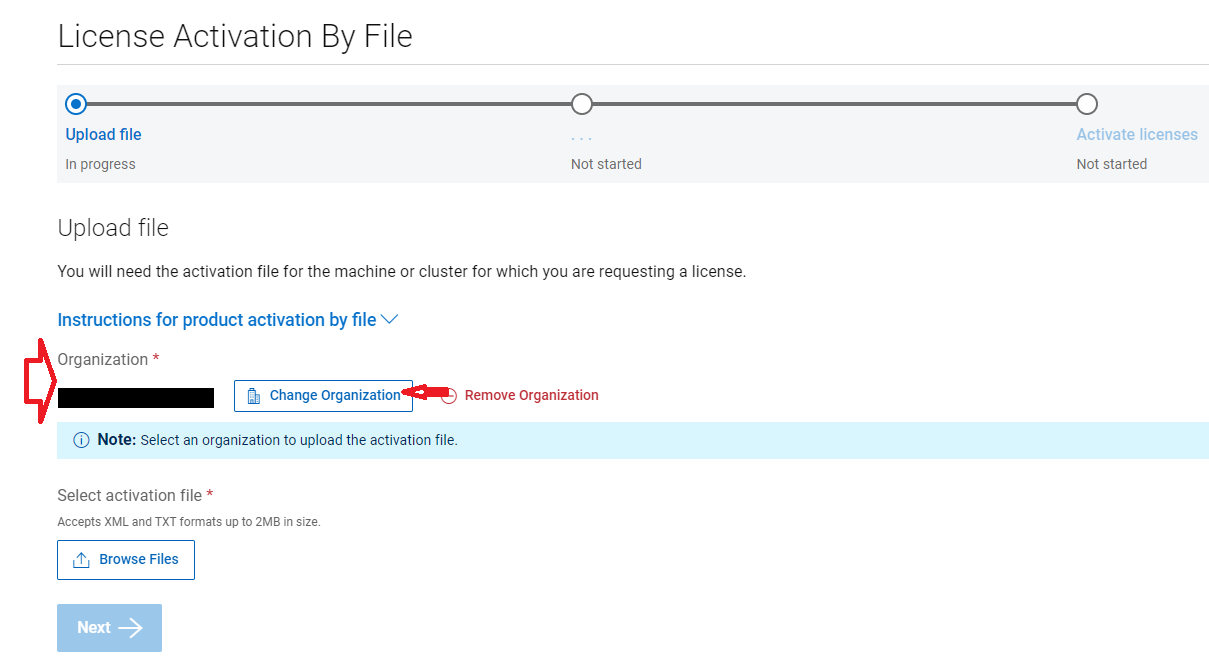
-
Click Upload.
-
Locate the activation file on your local machine and click Open.
This is an XML file. The file was originally generated with the name activation.xml, but the user may have saved it with a different name.

-
Click the Start the Activation Process button.
The Applied License Authorization Code (LAC) page appears if there are any missing products. The User sees a yellow icon next to these.
The User can search for a different LAC by clicking the View Available LACs button and selecting a different available LAC.
Note: When activating Isilon licenses from a Transformational Licensing Agreement (TLA), the system always shows that there are no available licenses. The User enters the License Authorization code (LAC) which is noted on the LAC letter/Customer Facing Object (CFO) letter. Once entered click Apply.
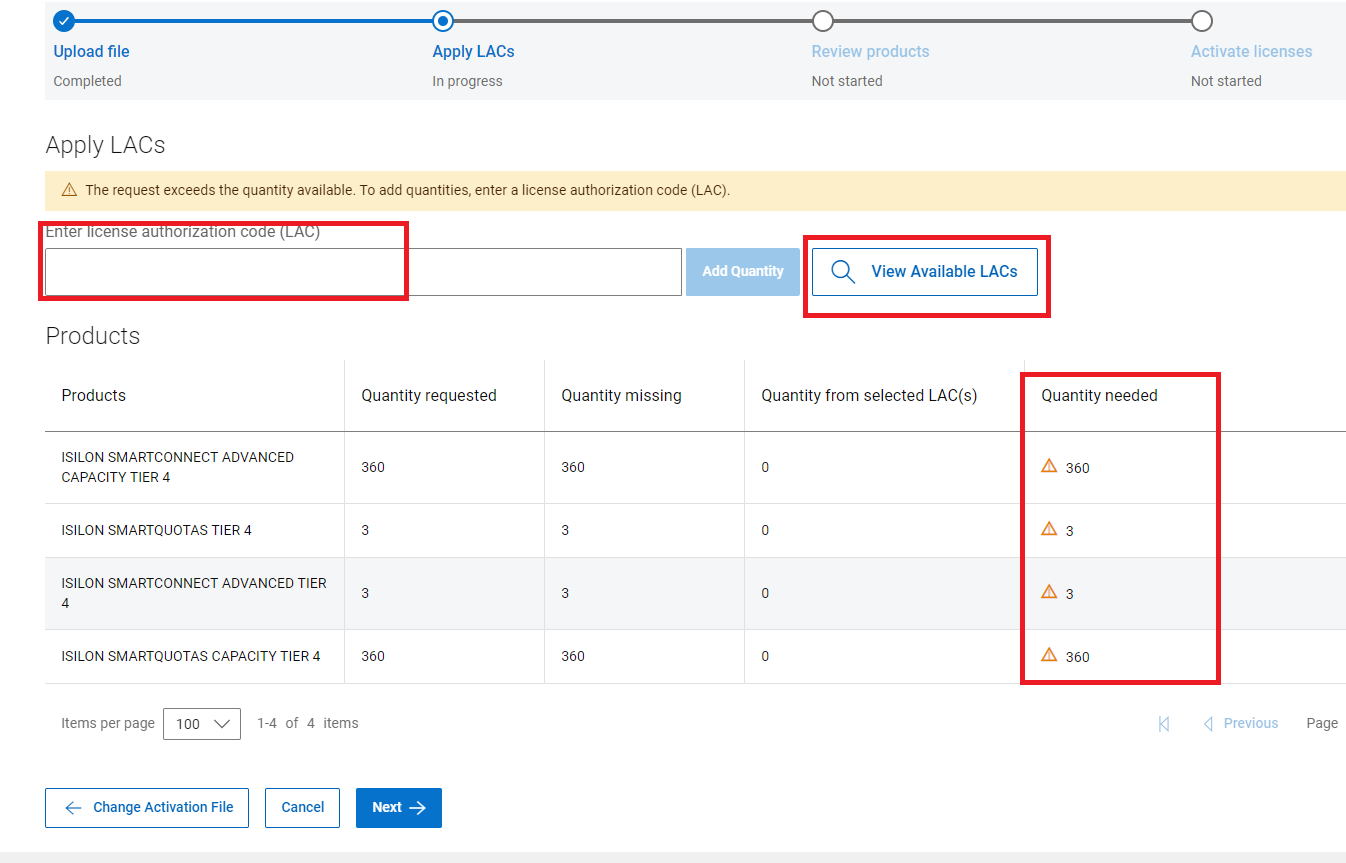
9. Otherwise, the User is brought directly to the 'Review Products' page if all products have been found.
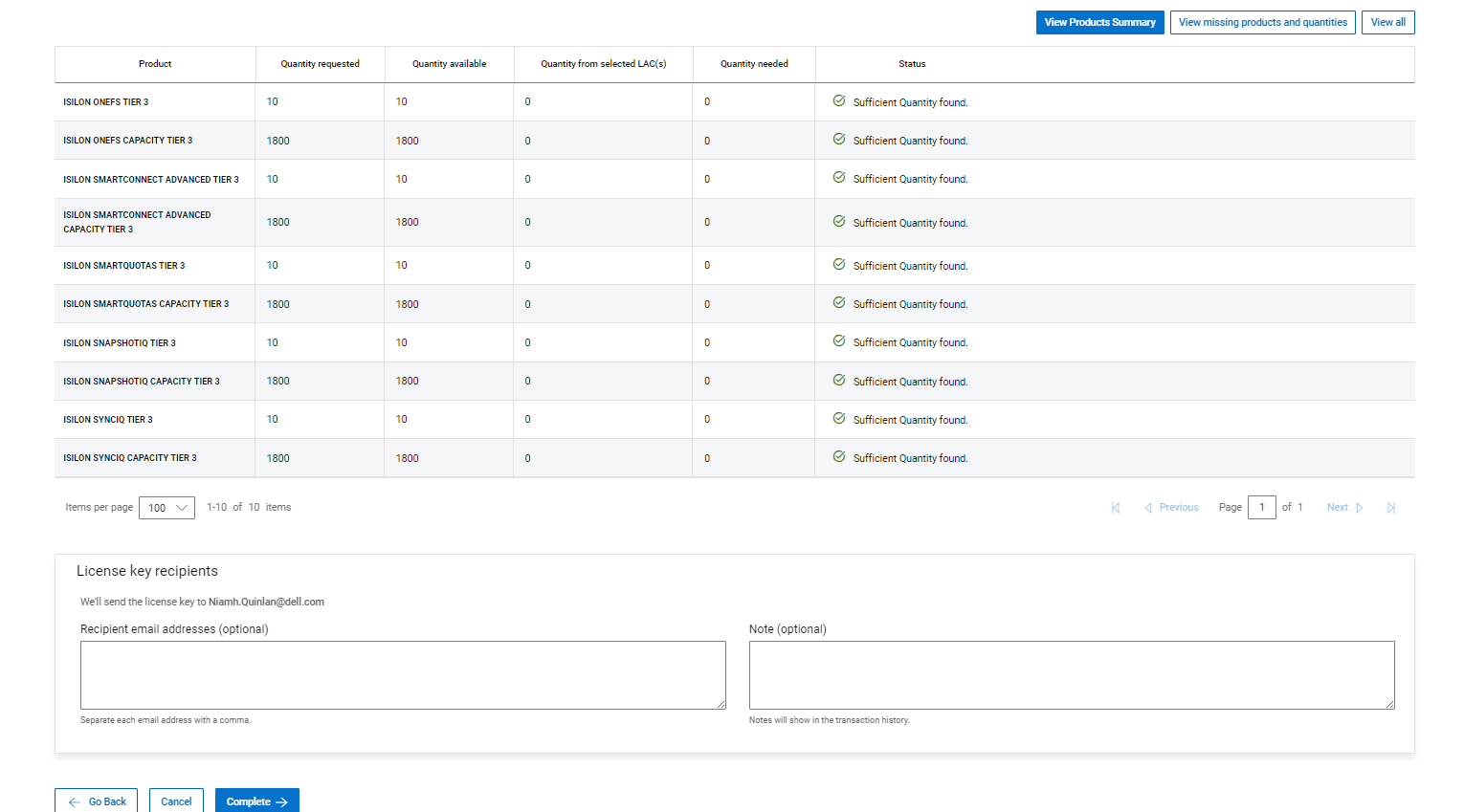
10 Click the Complete button
11. When the signed license file is available, SLC sends it to the User as an attachment to an email.
The signed license file may not be available immediately. The file is in XML format. If the Users company cannot receive .xml files via email, the User can download the license directly from SLC. To do this, search the Cluster GUID in the machine name field under certificates, following the steps below.
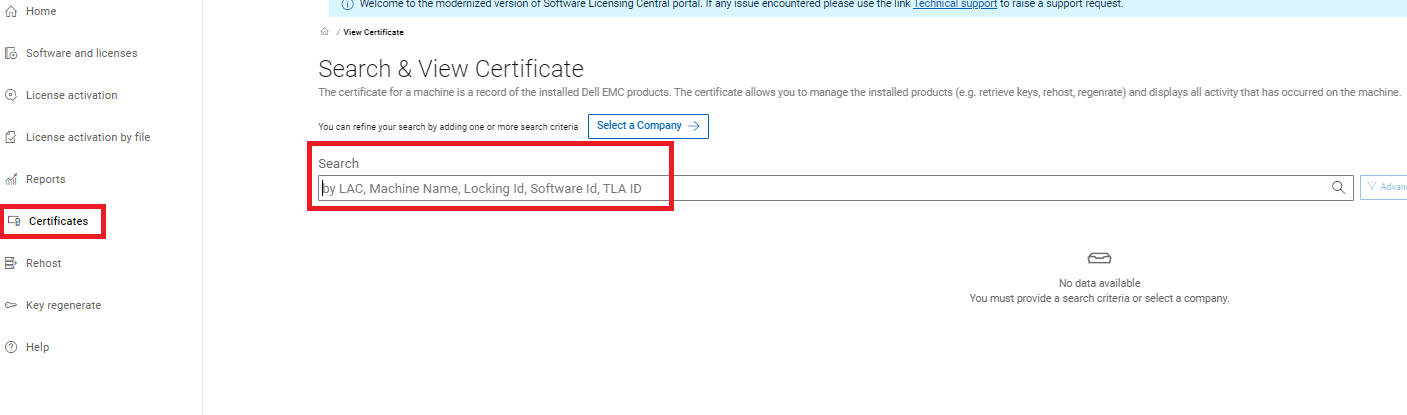
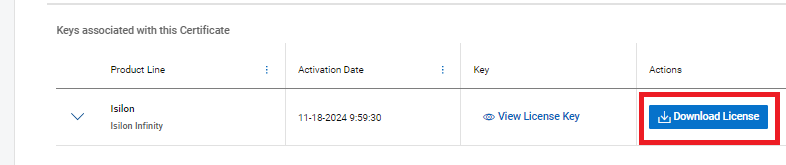
From here, the User can enter the Cluster GUID in the Machine name field. Once the machine is visible, the User can select the 'View' button where the file can be downloaded.
Note: Both Partial and Full rehosts also follow the 'activate by file' process. The User must generate a new activation.xml file. For partial rehosts, the licenses that have not been moved to the new Cluster are re-hosted to a Hold Machine.
Note: A dark site may be unable to use the Activate-by-file feature. The User should open a Service Request with the Licensing Team with the following information.
- LAC or Sales order number
- Node Serial numbers being activated
- Features and capacity being activated
- Cluster GUID; This is generated from the OneFS when a cluster is configured.
Note: Should the User experience any issues uploading the activation.xml file to SLC, a Service Request can be raised with the Licensing Team.
How to raise a Service Request.
- Contact Dell Technologies Technical Support to use the Live Chat feature between the hours of 12:00 AM EST Monday - 11:59 PM EST Friday or to use the Online Support Feature.
- Contact Dell Live Support by calling 001-800-782-4362 - mention "licensing"
- See the list of Phones Numbers by country or region, CUSTOMER SUPPORT CENTERS.
Affected Products
Isilon Gen6Article Properties
Article Number: 000228734
Article Type: How To
Last Modified: 21 May 2026
Version: 4
Find answers to your questions from other Dell users
Support Services
Check if your device is covered by Support Services.