NVP-vProxy: FLR "Mount failed: Unable to complete Sysinfo operation"
Summary: VMware File Level Restore (FLR) performed through the vProxy appliance fails in a NAT environment. The FLR mount fails with "An error occurred during host configuration."
This article applies to
This article does not apply to
This article is not tied to any specific product.
Not all product versions are identified in this article.
Symptoms
The NetWorker VMware Protection (NVP) integration is configured with the vProxy Appliance.
The virtual machine's (VM) File Level Recovery (FLR) mount operation fails with:
YYYY/MM/DD HH:MM:SS INFO:   [@(#) Build number: NETWORKER_BUILD] Created NFS export at 'DD_HOSTNAME:/data/col1/NETWORKER_MTREE/EMC-FLR-VPROXY_NAME-6e79b646-57fc-4737-b4ea-e11ec05326e8'
...
YYYY/MM/DD HH:MM:SS INFO:   [@(#) Build number: NETWORKER_BUILD] Unmounting after mount failure: Unable to create datastore 'EMC-FLR-VPROXY_NAME-21160-1534533476' using 'DD_HOSTNAME:/data/col1/NETWORKER_MTREE/FLR-VPROXY_NAME-6e79b646-57fc-4737-b4ea-e11ec05326e8': ServerFaultCode: An error occurred during host configuration.
Or:
YYYY/MM/DD HH:MM:SS INFO:   [@(#) Build number: NETWORKER_BUILD] Created NFS export at 'DD_HOSTNAME:/data/col1/nsr/FLR-VPROXY_NAME-47d11c4d-eb4d-4426-9f97-e7bf4643a0f9'
...
YYYY/MM/DD HH:MM:SS INFO:   [@(#) Build number: NETWORKER_BUILD] Unmounting after mount failure: Unable to create datastore 'EMC-FLR-VPROXY_NAME-348326-1733932768' using 'DD_HOSTNAME:/data/col1/NETWORKER_MTREE/FLR-VPROXY_NAME-47d11c4d-eb4d-4426-9f97-e7bf4643a0f9': ServerFaultCode: An error occurred during host configuration: . Operation failed, diagnostics report: Mount failed: Unable to complete Sysinfo operation.  Please see the VMkernel log file for more details.: The NFS server denied the mount request
Cause
Network Address Translation (NAT) is configured in the environment. While performing the FLR, the network traffic between the VMware ESXi host/vProxy passes through NAT to communicate with the target Data Domain.
For example:
ESXi Local IP: 192.168.9.115
NAT IP: 10.100.101.26
NAT IP: 10.100.101.26
Log in to the Data Domain over SSH and run:
Search for the Network File System (NFS) mount by entering: /FLR
The log shows that the NFS mount request is coming from the NAT IP instead of the ESXi host's local IP:
log view debug/ddfs.info
Search for the Network File System (NFS) mount by entering: /FLR
The log shows that the NFS mount request is coming from the NAT IP instead of the ESXi host's local IP:
MM/DD HH:MM:SS [7ff373a2c5b0] nfs_export_find_export: mount failed from (10.100.101.26/<unknown>): authentication failure for export point /data/col1/NETWORKER_MTREE/FLR-VPROXY_NAME-03496914-1442-4406-ae08-1341fcb96c39
The ESXi host, vProxy, and Data Domain are not aware of the NAT configuration. When vProxy creates the NFS export, it includes a client accept list with only the required local IPs (ESXi host and vProxy). The mount is issued from an IP address which the Data Domain is not expecting, and is rejected. This is to ensure that unauthorized addresses cannot attempt to mount the FLR datastore.
Resolution
Performing an FLR over an isolated NAT network is not supported with NVP vProxy.
NOTE: If you have confirmed that NAT configurations are not present in the environment, see the Additional Information field. There are other issues which can cause the errors outlined in the Symptoms field.
Workaround 1:
Perform an Image restore of the VM, where the recovered VM is powered off. Image restores do not create use NFS datastore connection and thus are not impacted by NAT configurations.
Once the VM recovery has completed, perform the following:
- From VMware vSphere, select the VM you want to recover the data to.
- Right-click the VM and select Edit Settings.
- From the VM settings, click Add New Device and select Existing Hard Disk from the drop-down.

- Browse to the recovered VM's datastore location and select the VM disks
- Once mounted on the target VM, connect using Remote Desktop or SSH and mount the disks to the File System. This process can vary depending on the OS. Consult with the VM system administrator.
- Copy the needed data off the disks.
- Once the required data has been copied off, unmount the disks or delete the recovered VM from the VMware inventory.
Workaround 2:
A workaround is deploying an ESXi host and NVP vProxy in the same network as the Data Domain, ensuring communication does not pass through NAT. The sole purpose of these hosts is for performing VM FLR. When the FLR is performed using the NVP inside the NAT environment, all communication is performed within the same 'network'. Backups can still be performed using the existing ESXi hosts/NVP vProxies outside of the NAT network.
Additional Information
If there is NO NetWorker Address Translation (NAT) configured, confirm the following:
- The ESXi host of the target VM, vProxy, and Data Domain can resolve each other's Fully Qualified Domain Name (FQDN), Short Name, and IP address.
- Port requirements are met:
- Ports 111, 2049, and 2052 are open between the ESXi host of the target VM and Data Domain.
- Ports 22, 111, 2049, 2052, and 3009 are open between the vProxy host and Data Domain.
- Ports 443 and 902 are open between the vProxy and the ESXi host of the target VM.
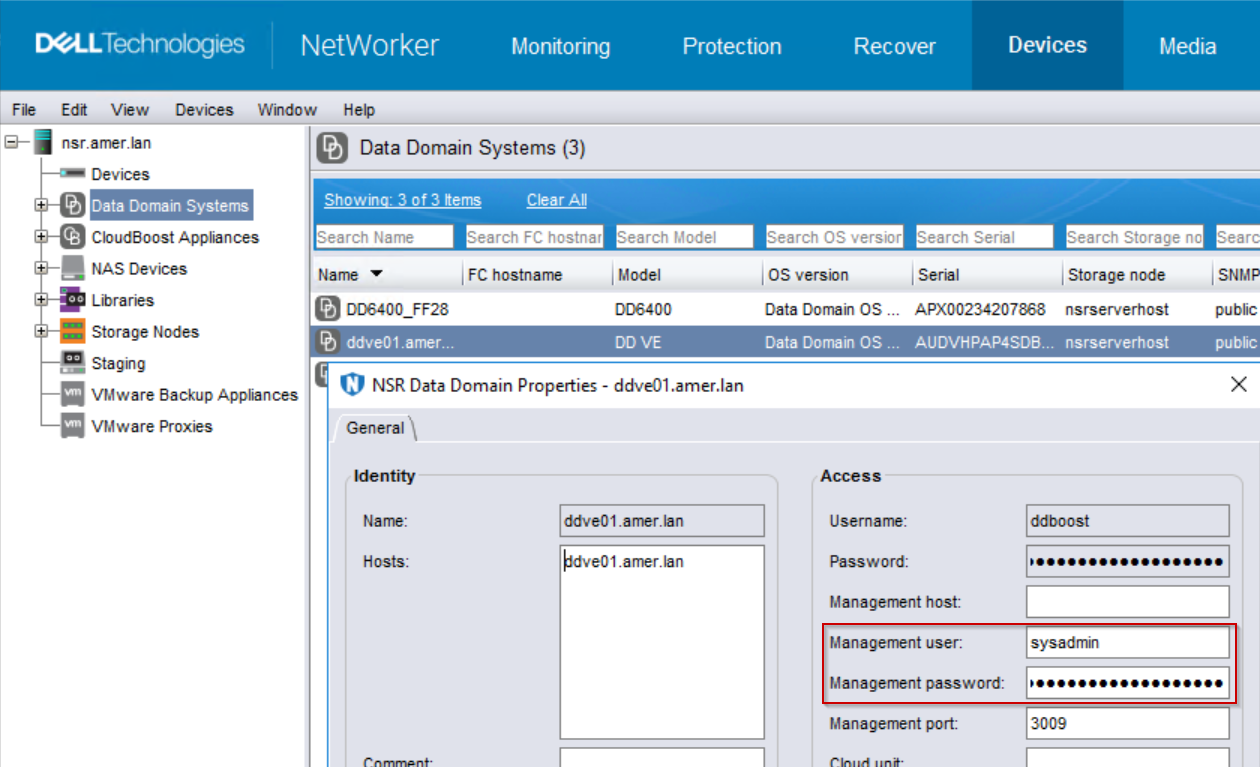
- From NMC: Devices-->Data Domain Systems, Management user, and password are set in the Data Domain properties.
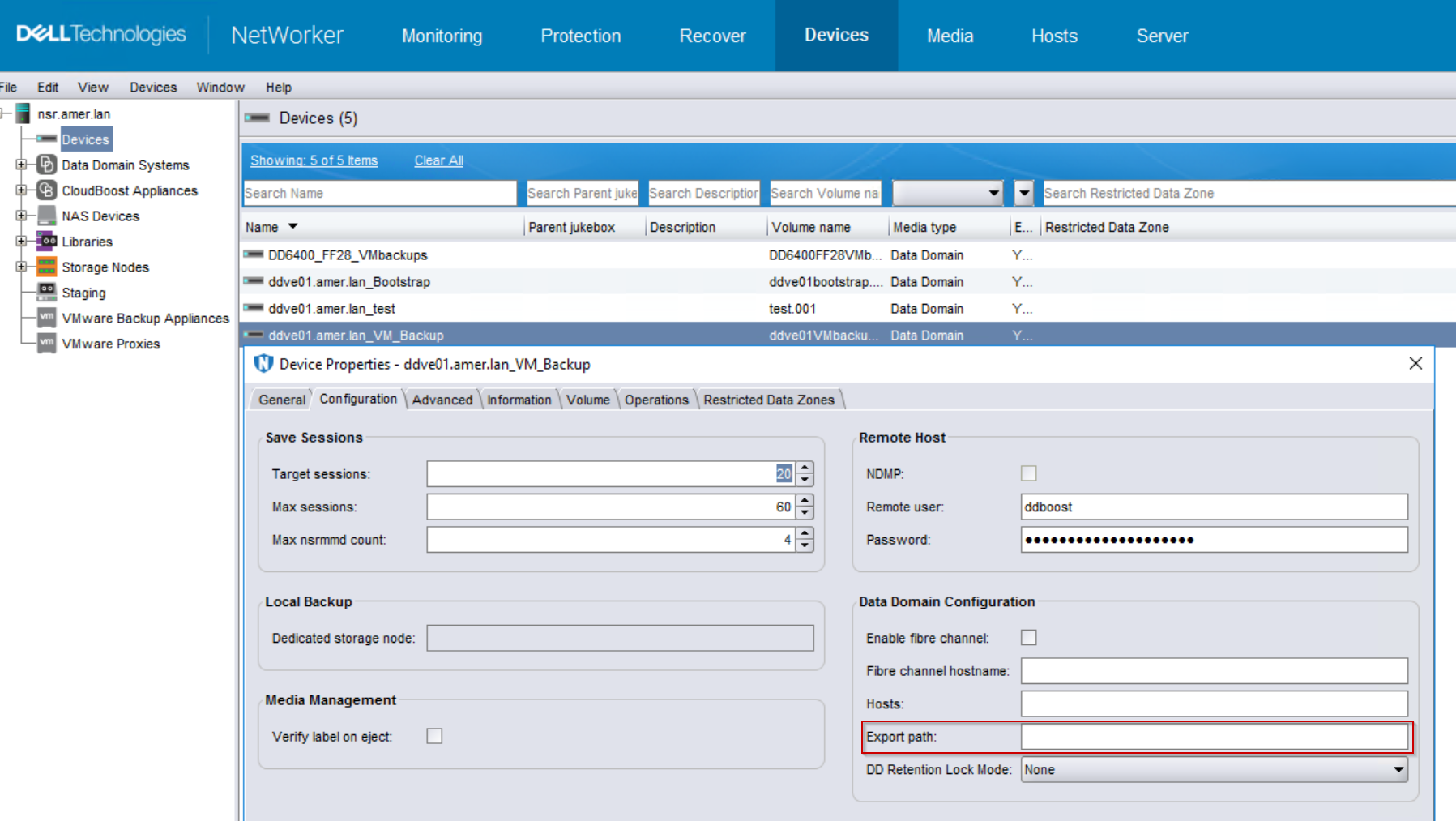
- From NMC: Devices-->Devices, The Device properties 'export path' field under the 'Configuration' tab only contains the NetWorker server short-name, or is blank.
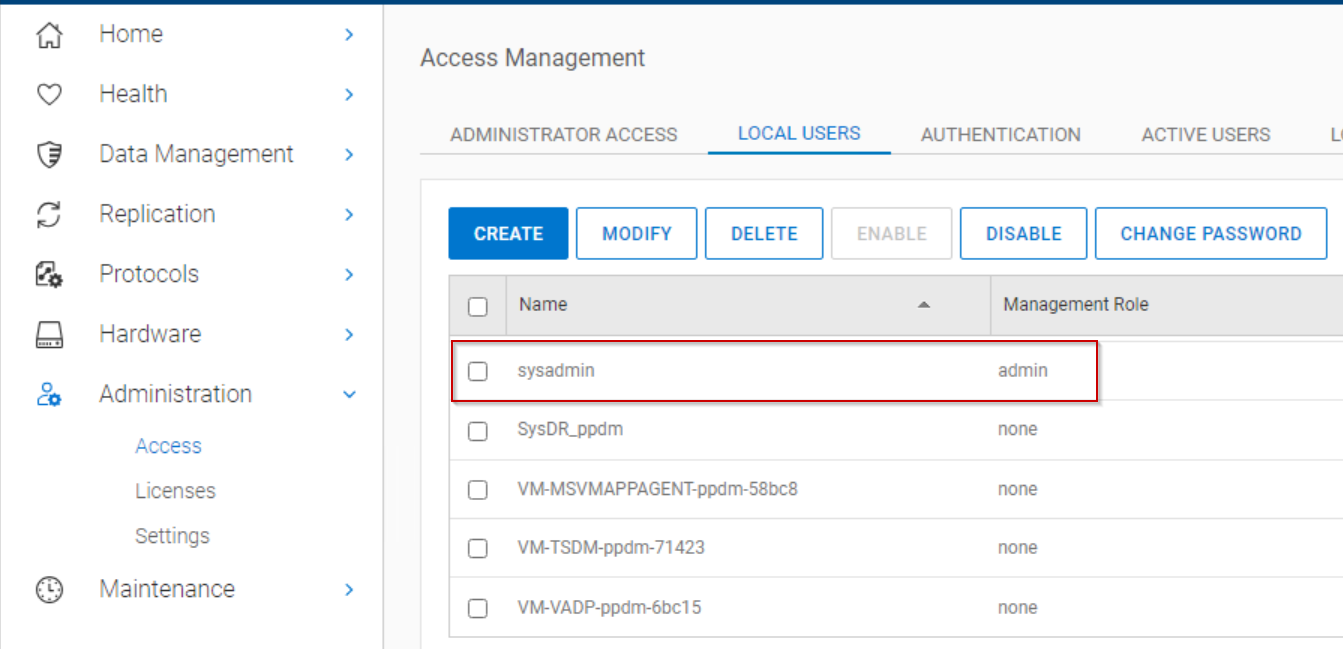
- From DD Management user interface: The 'Management' user set in the DD properties in NetWorker has 'admin' rights.
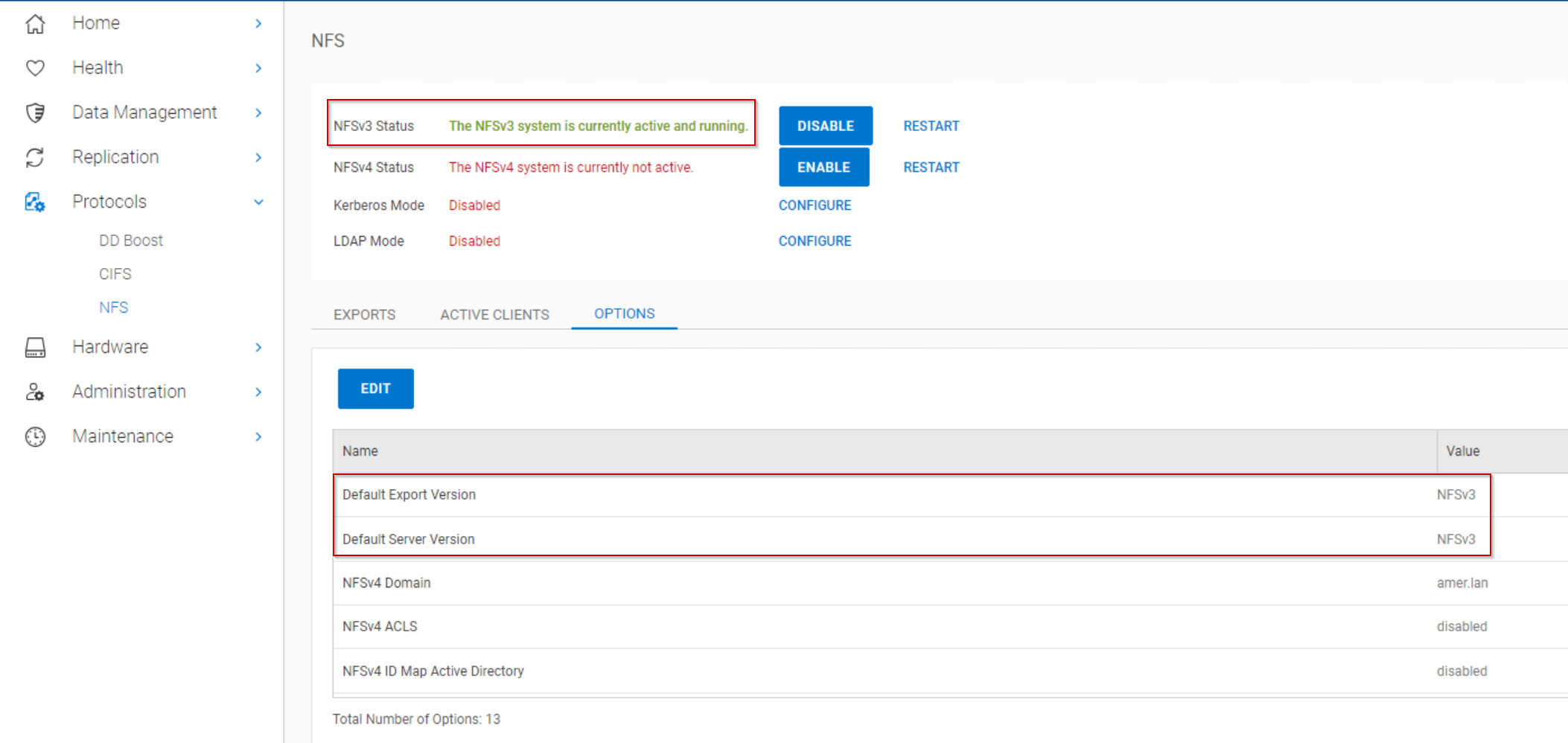
- From DD Management user interface: NFSv3 is enabled and is the default export and server method:
Affected Products
NetWorkerProducts
NetWorkerArticle Properties
Article Number: 000167640
Article Type: Solution
Last Modified: 13 Nov 2025
Version: 11
Find answers to your questions from other Dell users
Support Services
Check if your device is covered by Support Services.