Microsoft Deployment Toolkit (MDT) is Unable to Connect to the Deployment Share on Skylake or Kaby Lake Computers
Summary: Steps for getting the Microsoft Deployment Toolkit (MDT) to Connect to the deployment share on new systems.
This article applies to
This article does not apply to
This article is not tied to any specific product.
Not all product versions are identified in this article.
Instructions
Microsoft Deployment Toolkit (MDT) Unable to Connect
You might see this error with Skylake or Kaby Lake systems equipped with integrated Intel Ethernet adapters (Figure 1):
Figure 1
If the PCI ID has 8086, the missing driver is Intel-based; Skylake and Kaby Lake systems use the Intel E1D series driver. Windows 10 uses NDIS 6.5, UEFI requires 64-bit drivers, resulting in E1D65x64.inf.
Browse to the Dell Support Site, and download the latest Windows 10 Intel Ethernet driver. Put that into the MDT / SCCM (System Center Configuration Manager) for your computer.
NOTE: Updating the Windows ADK WinPE to the latest available (currently 1809) can resolve driver related issues on newer models (touchpad issues, and so on).
You may already have the Intel E1D driver 12.13 or 12.15 but the Skylake and Kaby Lake systems require 12.17 (same driver name but different version).
Make sure to verify the PE driver selection profile only has the WinPE CAB file contents PE Selection Profile:
If you do not have a clearly defined Selection Profile for Windows PE, one should be created.
Selection Profile Creation
- Download the latest Windows PE CAB file for the system from the Dell support site (note that the drivers are cross-compatible with most other models) (Figure 2):
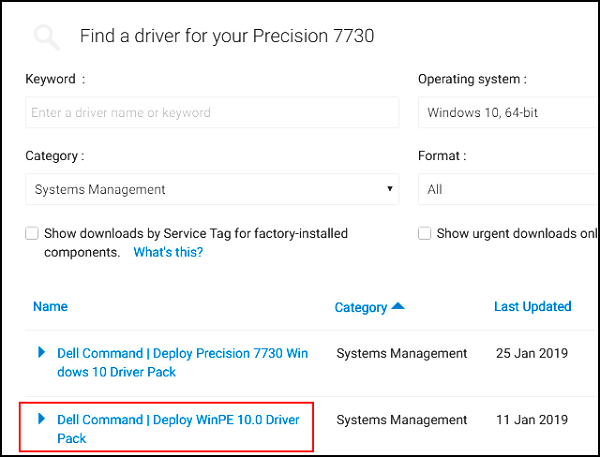
Figure 2
- Extract the contents of the CAB file to a temp directory (Figure 3).
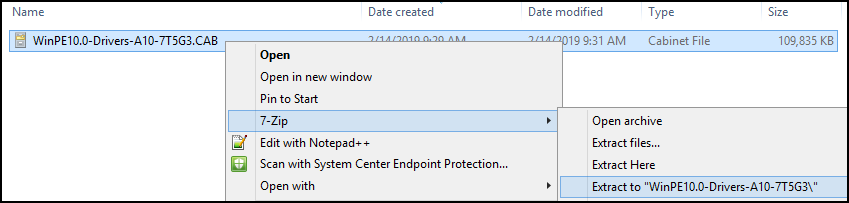
Figure 3
- Create a folder under Out-of-Box Drivers for Windows PE x64 (Figure 4 & 5):

Figure 4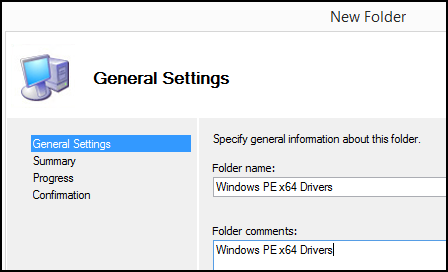
Figure 5
- Import the drivers from the x64 CAB folder into the MDT Windows PE x64 CAB folder (Figure 6):
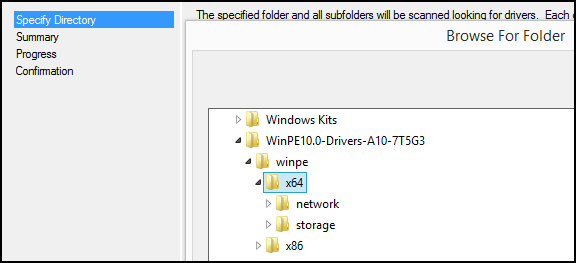
Figure 6
- Create a Selection Profile that links to the Windows PE x64 Drivers folder (Figure 7 & 8):
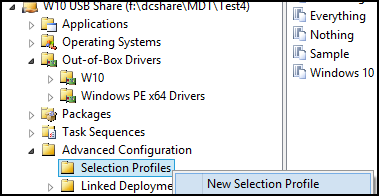
Figure 7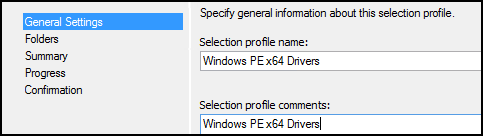
Figure 8
Select only the Windows PE x64 Drivers folder (Figure 9):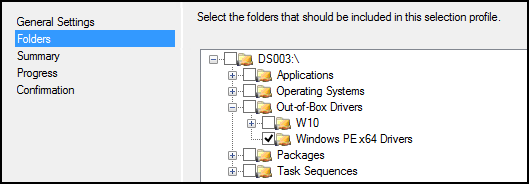
Figure 9
- Download the latest Intel Rapid Storage driver (16.5 or later) (Figure 10):
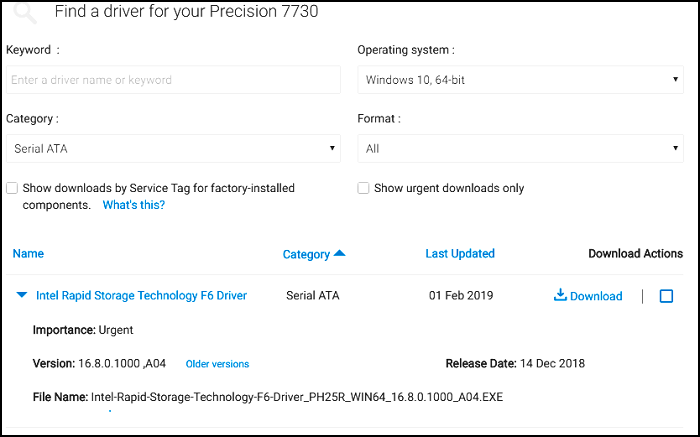
Figure 10
- Extract the Intel Rapid Storage driver to a temp directory (Figure 11):
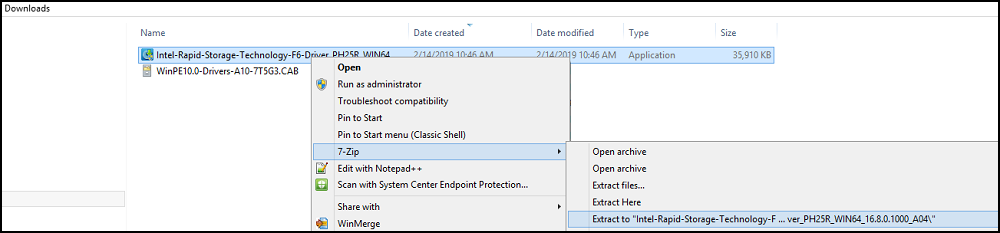
Figure 11
- Import the Windows 10 drivers into the Windows PE x64 Drivers folder (Figure 12 & 13):
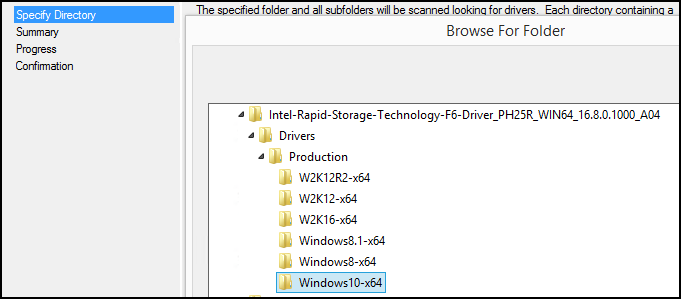
Figure 12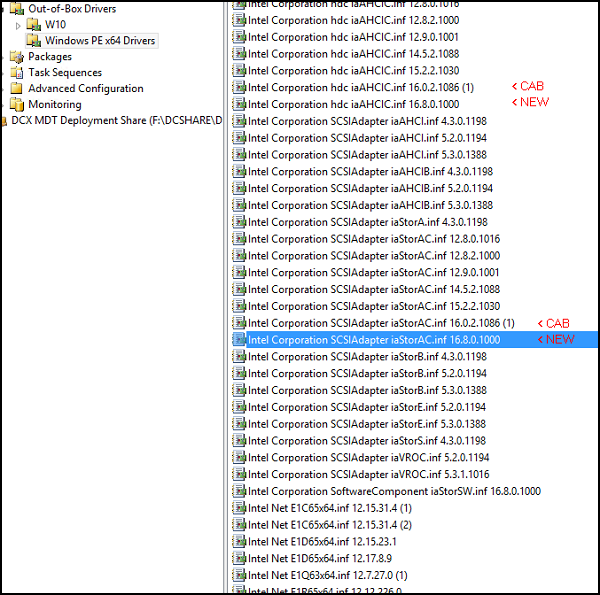
Figure 13
- Copy the 12.17 E1D65x64.inf driver (and the updated Intel Rapid Storage iaAHCI and iaStorAC drivers to the Windows 10 Selection Profile (for Windows to use during and after deployment) (Figure 14 & 15):
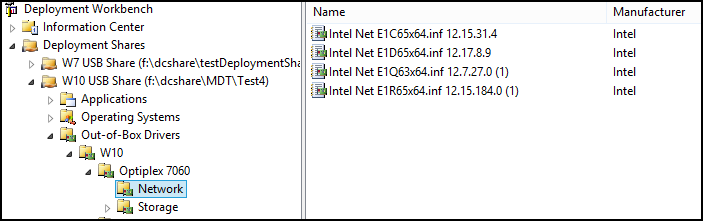
Figure 14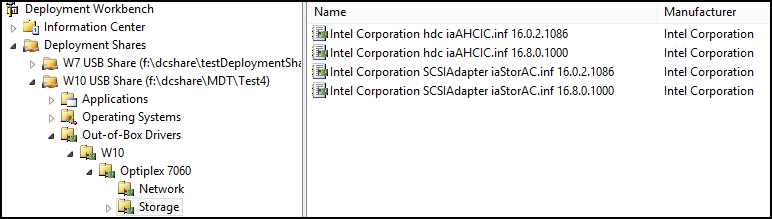
Figure 15
- Make sure Windows PE x64 Drivers selection profile is being used for Windows PE:
Right click Deployment Share top level, go to Properties (Figure 16):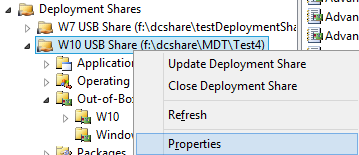
Figure 16
Click Windows PE, select x64, Drivers and Patches:
Change the selection profile from "Everything" to "Windows PE x64 Drivers" (Figure 17)
Figure 17
- Update the Deployment Share to re-create the Windows PE image (do not use update) (Figure 18 & 19).

Figure 18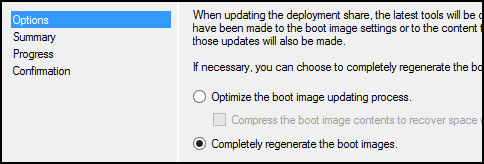
Figure 19
- Replace the MDT Windows 10 PE boot media in WDS / USB media with the new Windows PE x64.wim (Figure 20 & 21).
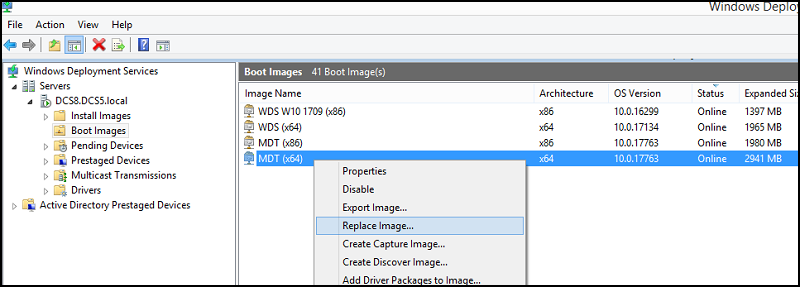
Figure 20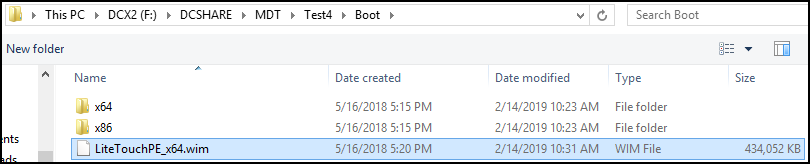
Figure 21
- Start the target system and try the deployment again.
NOTE: MDT pre-caches some deployment information about machines and should be cleared off by pressing F8 at the connection error screen to get to the command prompt. Once there run the following:
DISKPART
>SELECT DISK 0
>CLEAN
>EXIT
EXIT
Reboot and run the deployment again.
DISKPART
>SELECT DISK 0
>CLEAN
>EXIT
EXIT
Reboot and run the deployment again.
Article Properties
Article Number: 000145491
Article Type: How To
Last Modified: 17 Jul 2025
Version: 6
Find answers to your questions from other Dell users
Support Services
Check if your device is covered by Support Services.