NetWorker: Unable to Connect to Data Domain Alert
Summary: The NetWorker Management Console (NMC) frequently shows an alert "Unable to connect to Data Domain DD_NAME" however, there is no observed impact to data protection operations.
This article applies to
This article does not apply to
This article is not tied to any specific product.
Not all product versions are identified in this article.
Symptoms
NetWorker version is 19.x.
The following error frequently appears in the alerts section of the NetWorker Management Console (NMC).
This error may also be seen in the NetWorker server's daemon.raw:
The following error frequently appears in the alerts section of the NetWorker Management Console (NMC).
MM/DD/YY HH:MM:SS media Unable to connect to Data Domain 'DATA_DOMAIN_NAME'"
Linux: /nsr/logs/daemon.raw

Windows: C:\Program Files\EMC NetWorker\nsr\logs\daemon.raw
Backups are completing successfully.
Cause
There is a drop in network connectivity between NetWorker server or storage nodes and Data Domain.
Resolution
This issue is occurring outside of NetWorker. Have the network administrator or administrator team monitor the network between the NetWorker server or storage node and Data Domain system.
If the issue cannot be determined at the network level and poses no interruption to data protection operations, disabled the alert by following the steps below:

Figure 1: Screenshot of NetWorker Server Properties > Clearing the Device Connectivity Checkbox
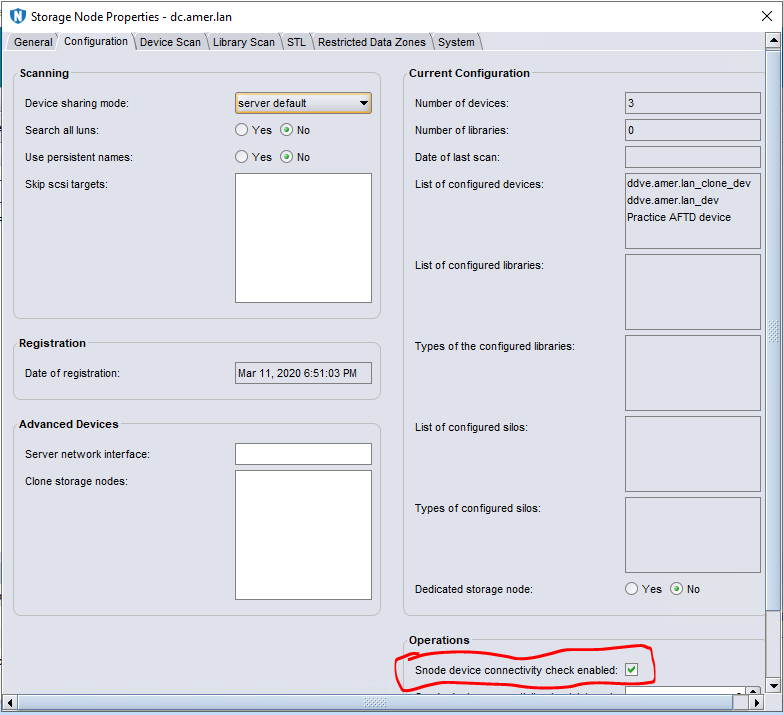
Figure 2: Storage Nodes Properties > Clearing the Snode Device Connectivity Checkbox
If the issue cannot be determined at the network level and poses no interruption to data protection operations, disabled the alert by following the steps below:
- Log in to the NetWorker Management Console (NMC).
- Under View, ensure that Diagnostic Mode is Enabled.
- From the Server tab, select the NetWorker Server and click Server Properties.
- From the Configuration tab, clear the Device connectivity check enabled checkbox.
Figure 1: Screenshot of NetWorker Server Properties > Clearing the Device Connectivity Checkbox
- From the Devices tab, select Storage Nodes.
- Right-click the Storage Nodes and select Properties.
- From the Configuration tab, clear the Snode device connectivity check enabled checkbox.
Figure 2: Storage Nodes Properties > Clearing the Snode Device Connectivity Checkbox
- Repeat this operation for the remaining Storage Nodes (if applicable).
Affected Products
NetWorkerArticle Properties
Article Number: 000199926
Article Type: Solution
Last Modified: 25 Nov 2025
Version: 3
Find answers to your questions from other Dell users
Support Services
Check if your device is covered by Support Services.