BIOS Update Error or Update Gets Stuck After Windows January 2025 Update
Summary: This article provides information about a BIOS update error or gets stuck on computers running Windows January 2025 updates or later.
This article applies to
This article does not apply to
This article is not tied to any specific product.
Not all product versions are identified in this article.
Symptoms
Affected Platforms:
- Alienware Aurora R12
- Alienware Aurora R13
- Alienware Aurora Ryzen Edition R14
- Alienware Aurora R15
- Alienware Aurora R15 AMD
- Alienware Aurora R16
- Alienware Area 51m R2
- Alienware m15 R3
- Alienware m15 R4
- Alienware m17 R3
- Alienware m17 R4
- Alienware x14
- Alienware x15 R1
- Alienware x15 R2
- Alienware x17 R1
- Alienware x17 R2
- XPS 8950
- XPS 8960
- Inspiron 15 3510
- Inspiron 15 3521
- Inspiron 3502
Note: Other platforms may be affected, the ones listed are the ones that have been identified currently.
Affected Operating Systems:
- Windows 11 24H2 26100.2894 or Later
- Windows 11 22H1 and 23H2 22621.4751 and 22631.4751 or later
- Windows 10 22H2 19044.5371 and 19045.5371 or later
Computers may fail to update the BIOS, or the BIOS update may get stuck within SupportAssist. The issue occurs after installing the January update from Microsoft.
- Windows 11 24H2 KB5050009 (OS Build 26100.2894) or later
- Windows 11 23H2 KB5050021 (OS Builds 22621.4751 and 22631.4751) or later
- Windows 10 22H2 KB5049981 (OS Builds 19044.5371 and 19045.5371) or later

Below symptoms may occur while installing the latest BIOS on your computer:
- Error in SupportAssist: Something went wrong during installation, and we couldn't complete it
Error : Driver Version Fail !message is displayed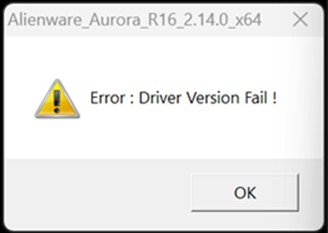
- The BIOS update remains in a loop
Cause
A security enhancement from Microsoft blocks the BIOS update.
Resolution
All impacted BIOS versions have been demoted from SupportAssist, Dell Update, or Alienware Update.
All BIOS updates have been released that resolves this issue, download the latest BIOS from the computers product page Drivers & Downloads.
| Marketing Model Name | BIOS version |
|---|---|
| Alienware Aurora R12 | 1.1.29 |
| Alienware Aurora R13 | 1.24.0 |
| Alienware Aurora Ryzen Edition R14 | 2.22.0 |
| Alienware Aurora R15 | 1.19.0 |
| Alienware Aurora R15 AMD | 1.17.0 |
| Alienware Aurora R16 | 2.15.0 |
| Alienware Area 51m R2 | 1.31.0 |
| Alienware m15 R3 | 1.31.0 |
| Alienware m15 R4 | 1.27.0 |
| Alienware m17 R3 | 1.31.0 |
| Alienware m17 R4 | 1.27.0 |
| Alienware x14 | 1.24.0 |
| Alienware x15 R1 | 1.27.0 |
| Alienware x15 R2 | 1.25.0 |
| Alienware x17 R1 | 1.27.0 |
| Alienware x17 R2 | 1.25.0 |
| XPS 8950 | 1.24.0 |
| XPS 8960 | 2.14.0 |
| Inspiron 15 3510 | 1.24.1 |
| Inspiron 15 3521 | 1.19.1 |
| Inspiron 3502 | 1.21.1 |
Update the BIOS from operating system
- Execute the BIOS flash file and follow the onscreen instructions
Update the BIOS using a USB stick:
- Copy the executable file to external storage (USB flash drive)
- Keep the USB connected and restart the computer
- Press F12 to enter One-Time Boot Settings (reference Flashing the BIOS from the F12 One-Time Boot Menu)
Affected Products
Alienware Area-51m R2, Alienware Aurora R12, Alienware Aurora R13, Alienware Aurora Ryzen Edition R14, Alienware Aurora R15 AMD, Alienware Aurora R15, Alienware Aurora R16, Alienware M15 R3, Alienware m15 R4, Alienware M17 R3, Alienware m17 R4
, Alienware x14, Alienware x15 R1, Alienware x15 R2, Alienware x17 R1, Alienware x17 R2, Inspiron 3502, Inspiron 15 3510, Inspiron 15 3521, XPS 8950, XPS 8960
...
Article Properties
Article Number: 000275742
Article Type: Solution
Last Modified: 29 Apr 2025
Version: 9
Find answers to your questions from other Dell users
Support Services
Check if your device is covered by Support Services.