Fix OneDrive Sync Problem When You See "OneDrive - Contoso Up to date" Message in the Icons Tray
Summary: Take the following steps to solve the sync error in OneDrive with Windows.
This article applies to
This article does not apply to
This article is not tied to any specific product.
Not all product versions are identified in this article.
Instructions

Check if you can access your OneDrive for Business account online by taking the following steps:
- Go to office.com
then sign in to your Office 365 account.
- Right-click the OneDrive cloud icon in the notification area at the taskbar.
- Select View online. If you cannot access your OneDrive for Business online, contact your Network Administrator.

Sync problem may be resolved by updating to the latest version of OneDrive. To do this take the following steps:
- Download and install the latest version of OneDrive to your PC.
Note: If you already have the latest version, the installer setup will end automatically.
- Open the OneDrive desktop app.
- Enter your OneDrive account email address then click the Sign in button.


Try to unlink and re-run the OneDrive setup if the sync problem persists. Do not worry about losing files, you can access these when you sign in to your OneDrive Business account online.
- Right-click the blue OneDrive cloud icon in the notification area in the taskbar.
- Click Settings then click Unlink this PC.
- Follow the steps in the Welcome to OneDrive wizard to set up OneDrive.

If the sync icon seems to be stuck, move some files out of a sync folder.
- Right-click the OneDrive icon on the taskbar, select Pause syncing... > 2 hours.
- Select a file from one of your sync folders and move it to a different folder that's is not included in OneDrive.
- Right-click the OneDrive icon then select Resume syncing.
- When the sync is complete, move the file back again.

Check out the following:
- File size: Ensure that files are no longer than 15GB. If you see an error message, such as "This file is too big to upload" or "Reduce the size of this file to upload to..." zip the file to reduce its size.
- Filename: Ensure that the file path and file name contain fewer than 400 characters (e.g., C:\Users\<UserName>\Pictures\Saved\2017\December\Holiday\NewYears\Family…). Shorten the file name if it's too long. Also, make sure that the filename has no unnecessary characters, such as <, >, :, ", |, ?, *, /, \.
- Check that the file does not contain unsupported file types.

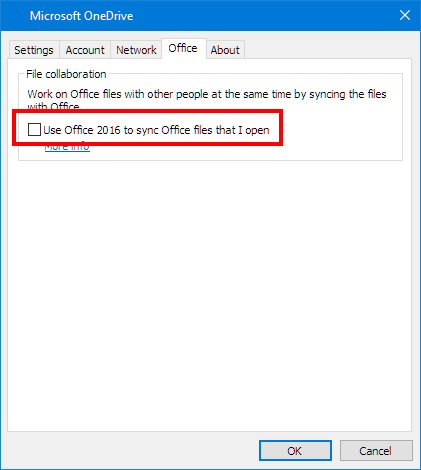
Sync troubles may also be caused by the Office Upload cache system. To turn off the office upload take the following steps:
- Right-click the OneDrive cloud icon in the notification area.
- Click Settings.
- Click the Office tab then uncheck the Use Office 2016 to sync Office files that I open option.

Ensure that you have permission to access the folder that you are trying to sync.
- Sign in with your Office 365 account.
- Open the file or folder that you want to sync, check if you have permission to save it. If you cannot see a file on a network, contact your administrator.

OneDrive sync problems may also be resolved by reinstalling Office to your PC. To do this take the following steps:
- Go to www.office.com
- Select Install Office.
Note: This installs the 32-bit version of Office on a PC.
- Click Run (Edge or Internet Explorer), Setup (Chrome), or Save File (Firefox).
- Click Yes if you see the prompt that says, Do you want to allow this app to make changes to your device?. The installation begins.
Affected Products
Microsoft 365 from DellArticle Properties
Article Number: 000185412
Article Type: How To
Last Modified: 02 Dec 2025
Version: 3
Find answers to your questions from other Dell users
Support Services
Check if your device is covered by Support Services.