NetWorker: After Enabling MFA, Login Fails with "Please Enter Valid OTP"
Summary: Multi-Factor Authentication is enabled for a local NetWorker user account and was successfully registered in Google Authenticator. While logging in with the MFA user, MFA authentication fails. An error message appears stating "Please Enter Valid OTP." A time sync issue is observed between the NetWorker/NWUI server and the host used to access the NetWorker Web User Interface (NWUI) ...
This article applies to
This article does not apply to
This article is not tied to any specific product.
Not all product versions are identified in this article.
Symptoms
- Multi-Factor Authentication is enabled for a local NetWorker user account and was successfully registered in Google Authenticator.
- The Google Authenticator app is version 6.0 or newer.
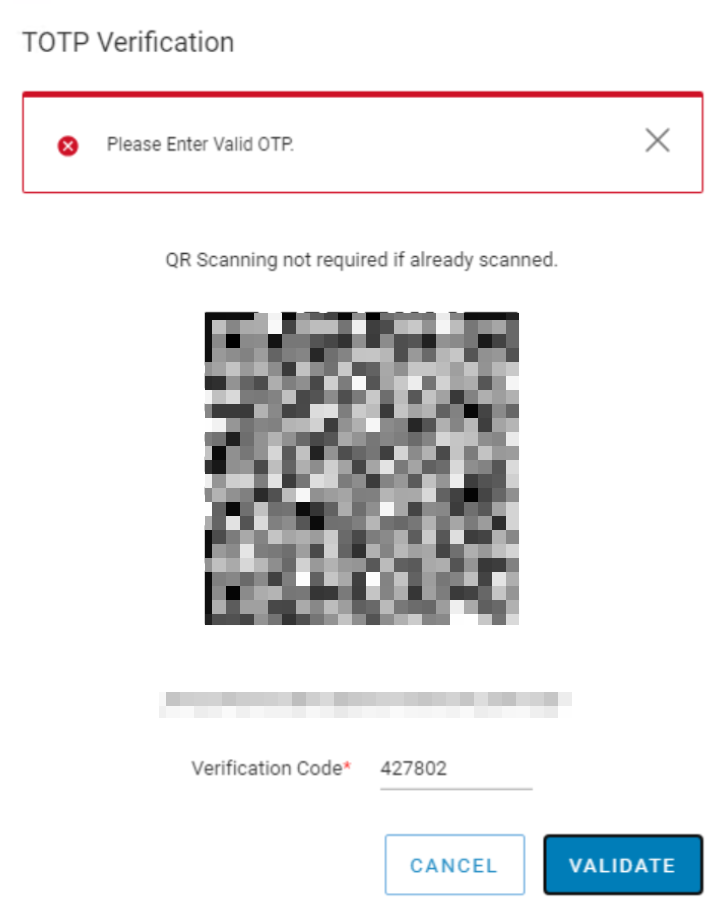
- While logging in to the NetWorker Web User Interface (NWUI) with the MFA user, MFA authentication fails. An error message appears stating "Please Enter Valid OTP"
Cause
The server used to access NWUI and the NetWorker server or out of time sync. For example, both the NetWorker server and host accessing NWUI are in the same time zone; however, the time on one of these systems is off.
This issue was observed in a scenario where the NetWorker server was set for a specific time zone; however, the time on the server was incorrect. It was off by one hour. Time differences of a few seconds may not pose any issue; however, greater discrepancies in time can produce this issue.
NOTE: This same error can be observed if the Google Authenticator app is not 6.0 or later. The NetWorker Security Configuration Guide states the Google Authenticator requirements for MFA: https://www.dell.com/support/product-details/product/networker/docs.
Resolution
Ensure that the Google Authenticator app is 6.0 or newer.
Fix the time zone/sync issues on the host that is out of sync.
Consult with the system administrator for changing time, time zone, Network Time Protocol (NTP) settings. These steps can vary depending on the operating system.
If the host out of sync is the NetWorker/NWUI server, restart NetWorker services:
Linux:
nsr_shutdown
net start networker
systemctl restart nwui
Windows:
net stop nsrd
net start nsrd
net stop nwui
net start nwui
Once the time sync issue is corrected, the MFA user can log in to NWUI using the Time-based One-time Password (TOTP) key from Google Authenticator.
Additional Information
For the NetWorker Virtual Edition (NVE) appliance, the time settings can be modified using the following instructions:
NOTE: the following steps apply for most Linux distributions; however, consult with system vendor documentation and the Linux system administrator before proceeding.
Time Zone adjustments:
- Check the current time zone:
timedatectl status
- List all available time zones:
timedatectl list-timezones
- Set the wanted time zone:
sudo timedatectl set-timezone <Your_Timezone>
NOTE: Replace <Your_Timezone> with the appropriate time zone from the list, such as America/New_york.
- Verify the change:
timedatectl
Manually set time:
- Check the current date and time:
date
- Set the new date and time:
sudo date -s "YYYY-MM-DD HH:MM:SS"
NOTE: Replace YYYY-MM-DD HH:MM:SS with the wanted date and time.
- Update the hardware clock to match the system clock:
sudo hwclock --systohc
This will ensure that the changes persist after a reboot.
Network Time Protocol (NTP) configuration:
- Open the /etc/ntp.conf file in a text editor with root privileges. For example, using vi:
sudo vi /etc/ntp.conf
- Add your NTP server by including a line with the server keyword followed by the server's address. For example:
server 0.pool.ntp.org iburst
server 1.pool.ntp.org iburst
server 2.pool.ntp.org iburst
server 3.pool.ntp.org iburst
- Save and close the file. In nano, you can do this by pressing ESC then enter :wq! to write the changes and exit.
- Restart the NTP service to apply the changes:
sudo systemctl restart ntpd
- Verify the NTP synchronization status:
ntpq -p
This ensures that your system is synchronized with the specified NTP servers.
Affected Products
NetWorkerProducts
NetWorker FamilyArticle Properties
Article Number: 000267579
Article Type: Solution
Last Modified: 04 Dec 2025
Version: 5
Find answers to your questions from other Dell users
Support Services
Check if your device is covered by Support Services.