VxRail: VMware tools install fails with: failed to install the SVGA driver automatically
Summary: VMware Tools installation or upgrade may fail while installing the Virtual Machine Communication Interface driver (VMCI) driver.
This article applies to
This article does not apply to
This article is not tied to any specific product.
Not all product versions are identified in this article.
Symptoms
Possible Errors:
Setup failed to install the VMCI Virtual Machine Communication Interface driver automatically. This driver will have to be installed manually.
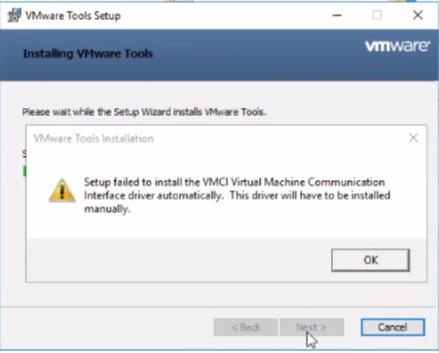
Setup failed to install the SVGA driver automatically. This driver will have to be installed manually.

Cause
- If an anti-virus is enabled and Device Install Server Service is not running, then it may cause VMware tools setup to fail on Windows.
- This can occur if the Microsoft Root Certificate Authority is missing or revoked from the Trusted Root Authority store.
Resolution
There are two solutions below, check which is the cause above and complete the steps below.
Resolution 1:
Disable anti-virus software on the VM to fix the issue.
Resolution 2:
To resolve this issue, add the root certificate using the below steps:
-
From the virtual machine where the VMware Tools installation or upgrade is failing with VMCI driver issue, go to C:\Windows\System32\drivers.
-
Right-click vmci.sys and select Properties > Digital Signatures > Signature list.
-
You see the certificates used to sign for this driver. It might be one or more than one cert.
-
Select the first name click details and select View Certificate.

-
Click Install Certificate > Next and complete the wizard.

-
You see that "The import was successful." Repeat the same steps for all "Signature list" under "Digital Signature."
-
Retry the VMware Tools upgrade or installation.
Additional Information

Affected Products
VxRail Appliance Family, VxRail Appliance Series, VxRail SoftwareArticle Properties
Article Number: 000063245
Article Type: Solution
Last Modified: 24 Dec 2024
Version: 5
Find answers to your questions from other Dell users
Support Services
Check if your device is covered by Support Services.